Update the REST API to a new version
Each version of the REST API matches the Sage 50 Canadian Edition release it supports. To move to a new version, run the new installer on the server where the REST API is installed and choose to update the existing installation. Setup upgrades it in place: the URL, the IIS app pool and the API key stay the same, so your apps and AI clients keep working without any configuration change.
Before you update
- Read the changelog for the new version. Changes marked Breaking may need updates in your app before you upgrade.
- Contact us to get the installer for the new version. We send you the latest version of the setup.
- Make sure the setup version matches your Sage 50 version. The setup name starts with the Sage 50 version it supports, for example
2027.0. If Sage 50 is at 2027.0 and you install a 2026.2 setup, the installation completes, but every request returns an error that the Sage version is not compatible. - Sign in to the server where the REST API runs, with an account that can install software and manage IIS.
Start the installer
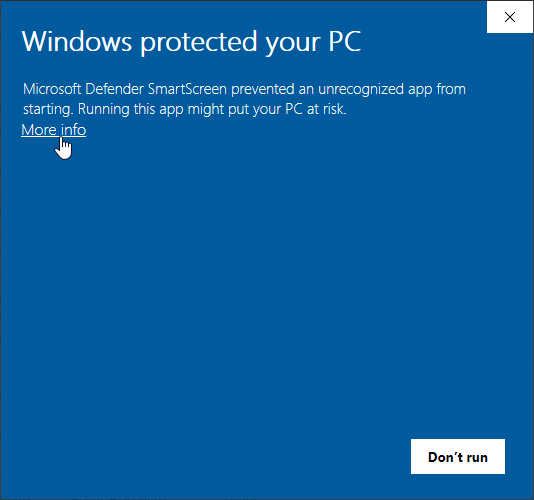
Windows may block the installer the first time you run it. If the Windows protected your PC screen appears, click More info.
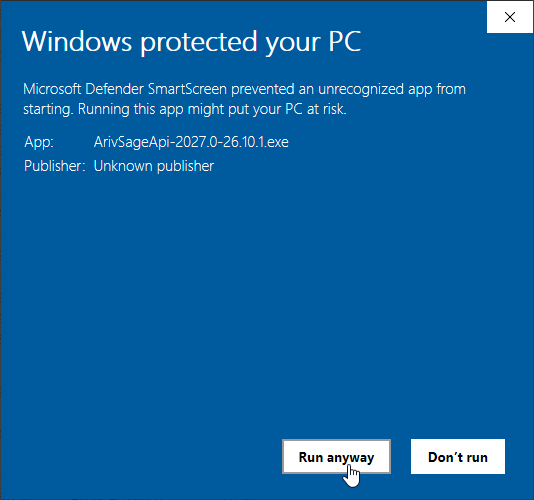
Check that the app name is the installer we sent you, then click Run anyway.
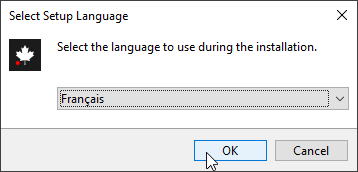
Choose the language for setup, English or French, and click OK.
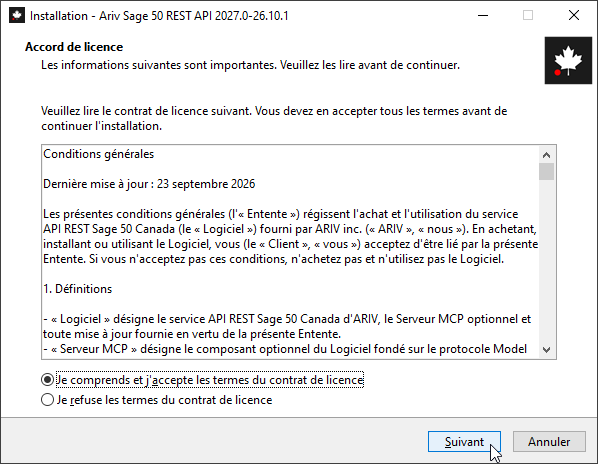
Read the license agreement, select I accept the agreement, and click Next.
Setup then shows the Prerequisites page while it checks the Windows features IIS needs: World Wide Web Services, IIS Management Scripts and Tools, HTTP Activation and ASP.NET 4.8. On a server where the REST API is already installed, these features are already on. Wait for the page to finish. If Windows asks for a restart, restart the server and run setup again.
Choose the installation to update
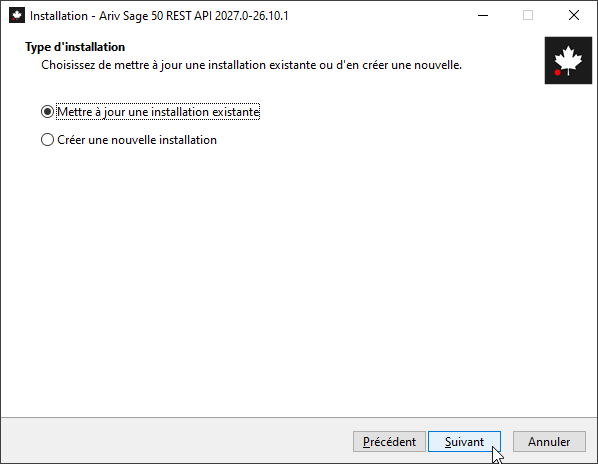
Setup asks whether to update an existing installation or create a new one. Select Update an existing installation and click Next.
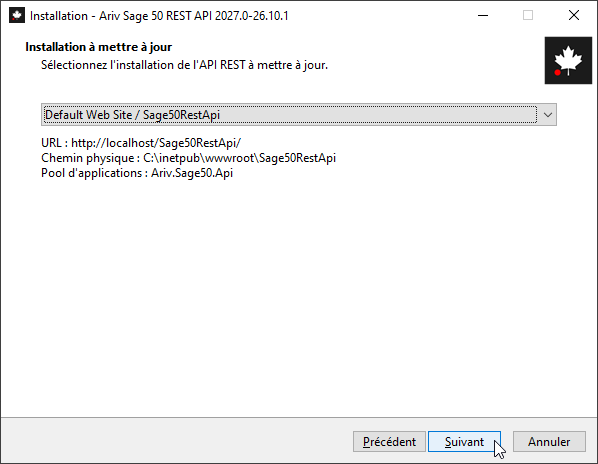
The list shows every REST API installation on the server, by IIS website and virtual path. Setup preselects the last one installed. Below the list, check its URL, physical path and app pool, then click Next.
Check the application settings
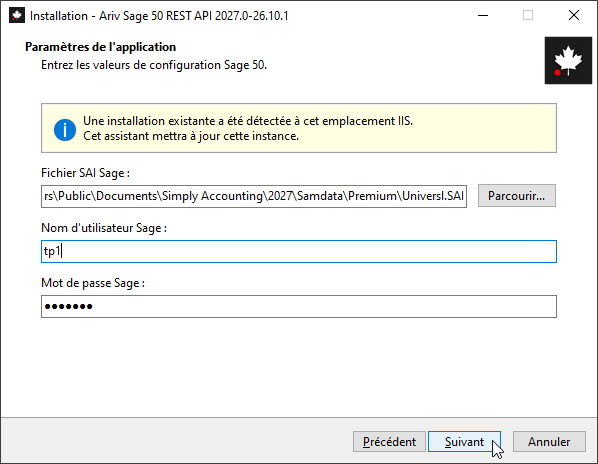
A notice confirms that setup found an existing installation at this IIS location and will update it. Check the Sage company file (.SAI), the Sage user name and the password the API uses to open the company file. If the company file has moved, click Browse to select it. Click Next.
Choose the MCP server
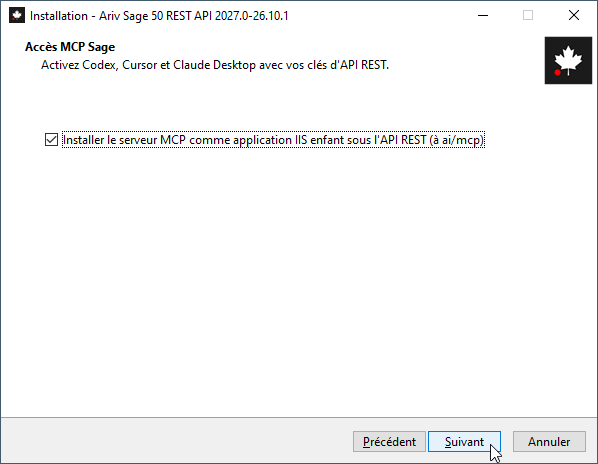
Leave Install the MCP server as an IIS child application under the REST API selected to keep or add the MCP server at ai/mcp. Clear it to update the REST API alone. If the MCP server is already installed, clearing this option removes it. See Connect AI clients to Sage 50.
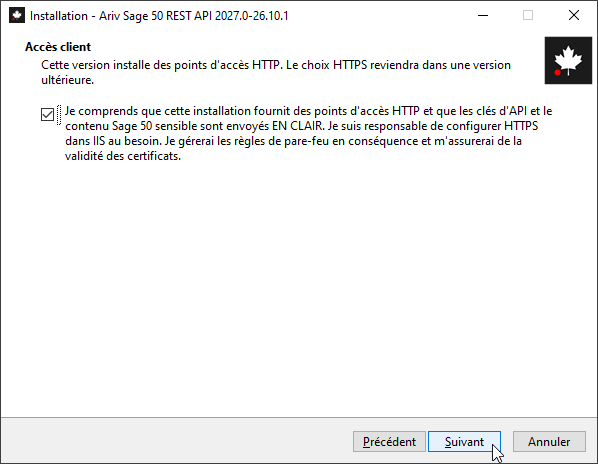
Confirm client access
This version installs HTTP endpoints. Select the acknowledgement that API keys and Sage 50 data are sent in clear text over HTTP, and that you are responsible for configuring HTTPS in IIS, firewall rules and certificates where needed. Click Next.
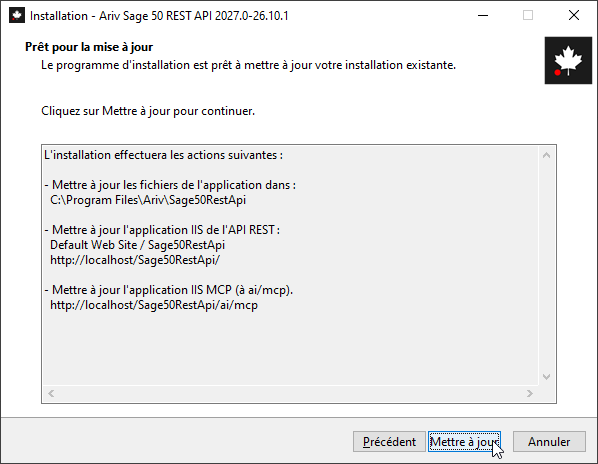
Run the update
Setup lists what it will do: update the application files, the REST API IIS application and, if selected, the MCP IIS application. Check the website, path and URLs, then click Update.
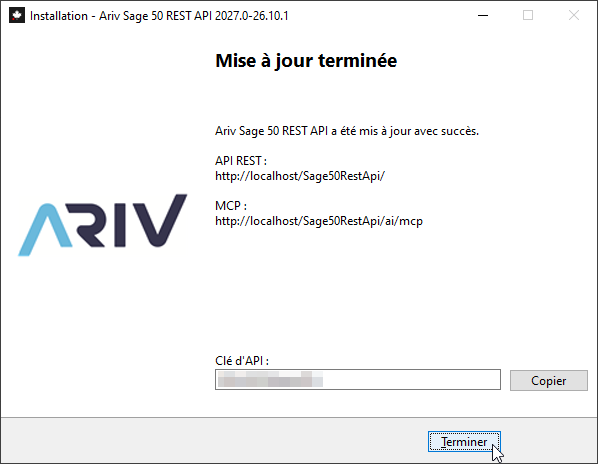
When the update is complete, setup shows the REST API URL, the MCP URL and the API key. They are the same as before the update, so nothing changes in your apps or AI clients. Click Finish.
To update the REST API for another company file, run the setup again and select that installation.
Check the installed version
Call GET /api/database with your API key. The Ariv-Product-Version response header returns the installed product version, for example 26.10.1.
curl -i http://localhost/Sage50RestApi/api/database \
-H "x-api-key: YOUR_API_KEY"HTTP/1.1 200 OK
Ariv-Product-Version: 26.10.1Add or Remove Programs also shows the Sage 50 version and the product version, for example 2027.0-26.10.1.
Next steps
- Read the changelog for what changed in the new version
- Browse the full API reference for all endpoints
- Connect AI clients to Sage 50 if you added the MCP server