Disconnect the REST API from the company file
While the REST API is connected to a company file, it holds the file open through the Sage 50 SDK. Sage 50 can then only open the file in multi-user mode. Some tasks need single-user mode, such as a backup, a data check or a period-end procedure. To run them, disconnect the REST API from the company file first.
Disconnecting is safe. The REST API reconnects by itself the next time a request comes in, so you do not need to reconfigure anything afterwards.
Choose a method
| Method | Best for |
|---|---|
| Call the Close endpoint with PowerShell | A quick, repeatable disconnect you can copy and paste |
| Use Swagger | Clicking through a page, without typing a command |
| Stop the IIS site | Making sure nothing can reconnect while you work |
| Ask the MCP server | Disconnecting from an AI client, in plain language |
Method 1: Call the Close endpoint with PowerShell
The POST /api/database/close endpoint closes the connection to the company file. See Close database connection in the API reference.
Open PowerShell on a machine that can reach the REST API and run the script below. Replace the two values at the top with your own.
$baseUrl = "http://localhost/Sage50RestApi"
$apiKey  = "YOUR_API_KEY"

Invoke-RestMethod -Method Post `
  -Uri "$baseUrl/api/database/close" `
  -Headers @{ "x-api-key" = $apiKey }
A successful call returns isConnectionOpen set to False:
isConnectionOpen
----------------
           False
You can now open the company file in Sage 50 in single-user mode.
The URL must be reachable
The script must be able to reach the REST API at $baseUrl.
- If you run it on the same machine that hosts the REST API, use
localhost, as in the example. - If you run it from another machine, replace
localhostwith the server name or address that your apps use, and make sure the firewall allows the request.
If the call returns 401, the API key is wrong. If the call cannot connect, the URL is wrong or the site is stopped.
Method 2: Use Swagger
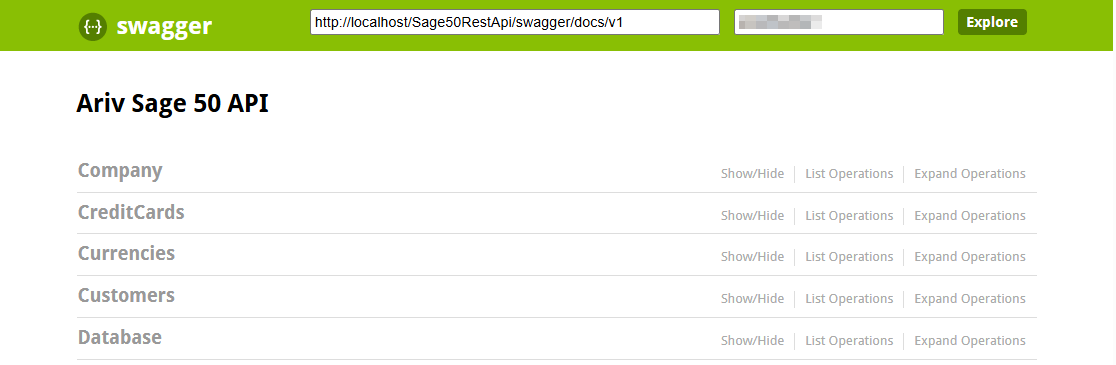
Swagger is a web page included with the REST API where you can call any endpoint from your browser. You can use it from the server or from any other machine, as long as the REST API URL is reachable from your browser.
- Open a browser and go to the Swagger page of your installation, for example
http://localhost/Sage50RestApi/. From another machine, replacelocalhostwith the server name or address. - In the API key box at the top, enter your API key, then click Explore.
- Find the Database section and click it to expand it.
- Click
POST /api/database/close, then click Try it out.
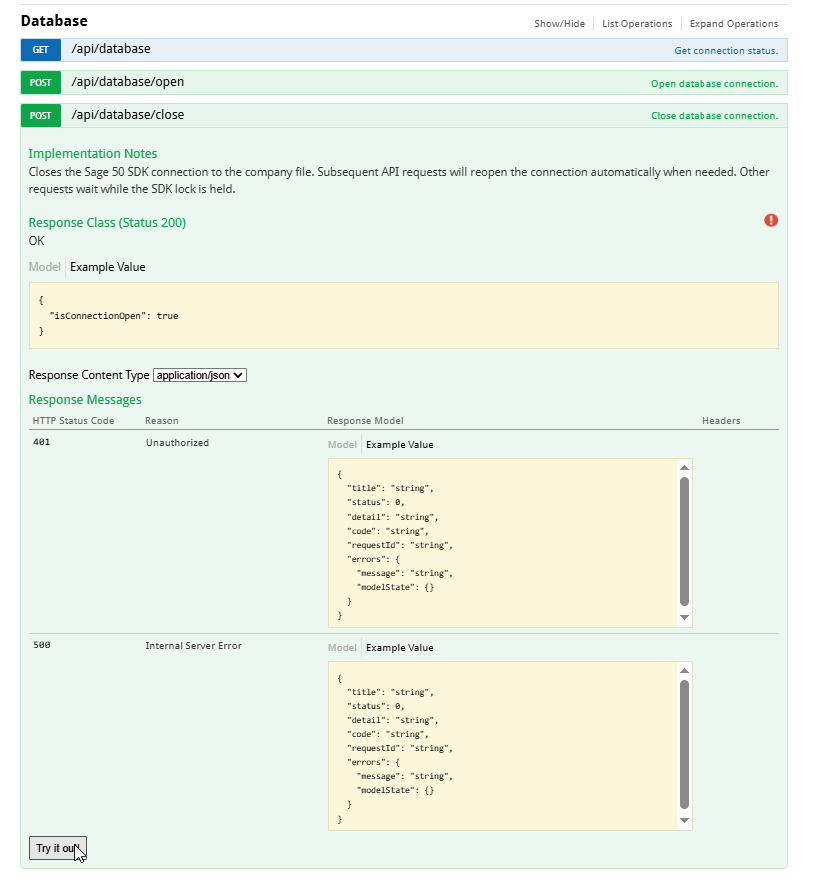
The response shows "isConnectionOpen": false once the connection is closed.
Method 3: Stop the IIS site
Stopping the IIS website that hosts the REST API disconnects it for as long as the site is stopped. Nothing can reconnect, because no request reaches the API. Unlike the other methods, this one must be done locally on the machine that hosts the REST API.
- Sign in to the server, for example through Remote Desktop, and open Internet Information Services (IIS) Manager.
- In the Connections pane, expand Sites and select the website that hosts the REST API, for example Default Web Site.
- In the Actions pane, under Manage Website, click Stop.
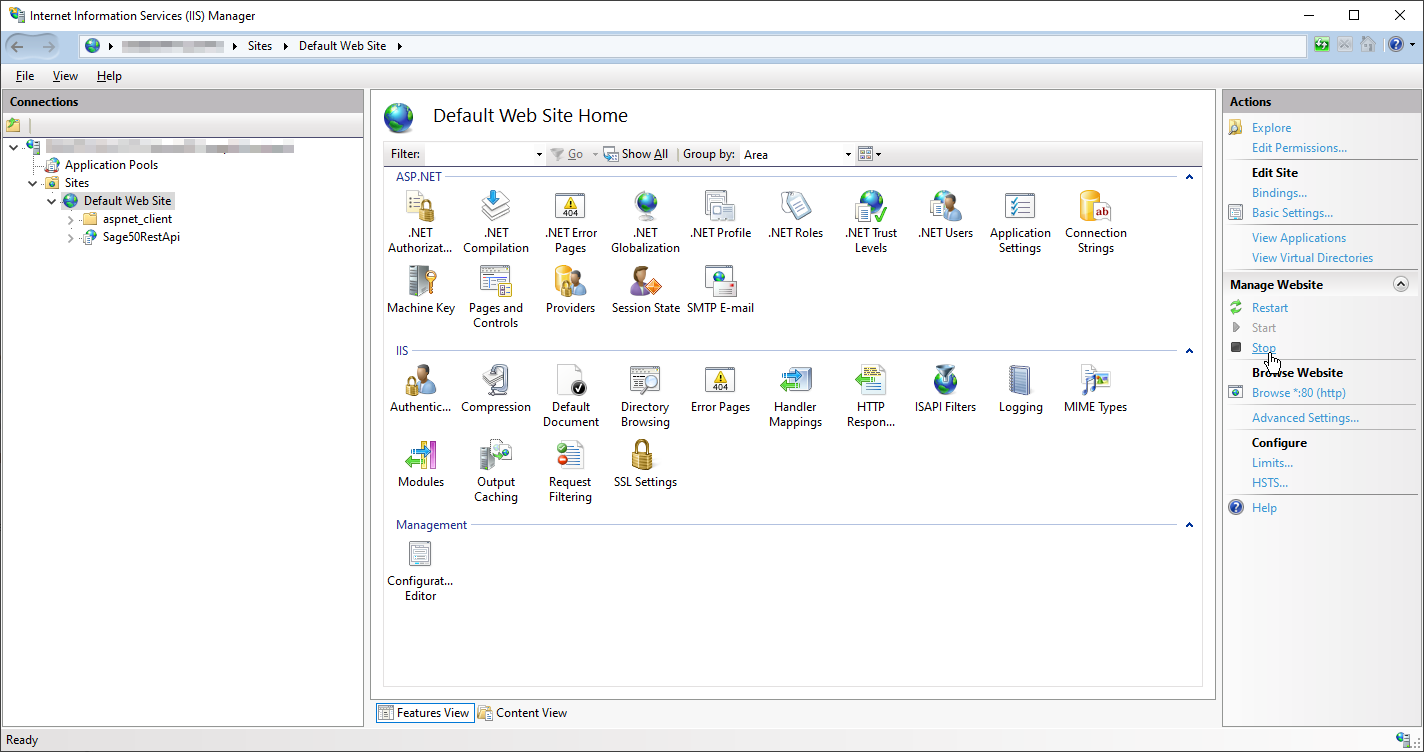
If other applications share the same IIS website, they stop too. In that case, prefer Method 1, 2 or 4.
Method 4: Ask the MCP server
If you connected an AI client to Sage 50, you can ask it to disconnect. The client calls the MCP server, which closes the connection to the company file. You can do this from any machine where the client runs.
Type a request like this one:
Done. I closed the Sage 50 connection to the company file, so the REST API is now disconnected.
You can open the company file in Sage 50 in single-user mode now. The REST API reconnects by itself the next time a request comes in, so finish your work in single-user mode before any app or AI client calls it again.
The reply above is an example. The wording of your AI client’s reply will differ.
After you disconnect
The REST API does not stay disconnected on its own. The next request from any app or AI client opens the connection again, and Sage 50 may then be unable to open the company file in single-user mode.
- Finish your single-user task before any app calls the API, or pause those apps while you work.
- To keep the REST API disconnected for the whole task, use Method 3. If you ask the MCP server, remember that your own AI client calling the API again reconnects it too.
To check whether the REST API is connected, call GET /api/database. It returns isConnectionOpen.
Next steps
- Browse the full API reference for all endpoints
- Update the REST API to a new version